ONBOARDING
How to start
This is a quick guide to your first few minutes on Almena: log in, choose your profile, land on Workspace, pick a view and add the widgets you need. The platform is currently invitation-only while we onboard teams carefully. If you do not have access yet, contact us or book a demo and we will get you set up.
Step one
Setting up your workspace
Before any of the use cases below make sense, your workspace needs to exist. It takes under a minute.
1
Log in
Head to the platform and sign in. Access is currently invitation-only while we onboard teams carefully. If you don't have an account yet, contact us and we'll get you set up.
2
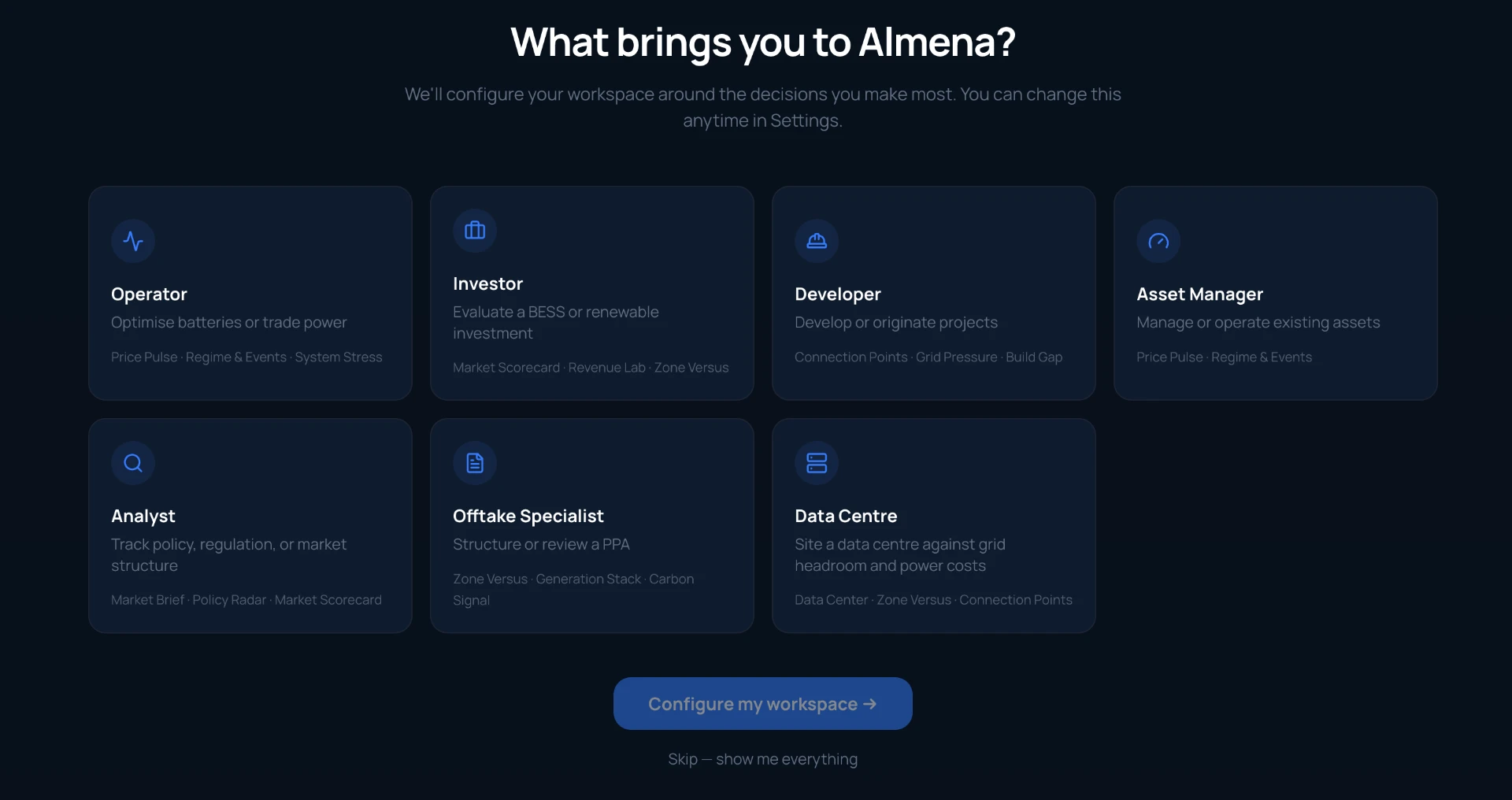
Choose your profile
Tell us what brings you to Almena. You can select more than one, or skip this entirely and see everything. Nothing here is a locked door, just a shortcut: it decides which widgets your workspace opens with.
OperatorInvestorDeveloperAsset ManagerAnalystOfftake SpecialistData Centre
3
Land on Workspace
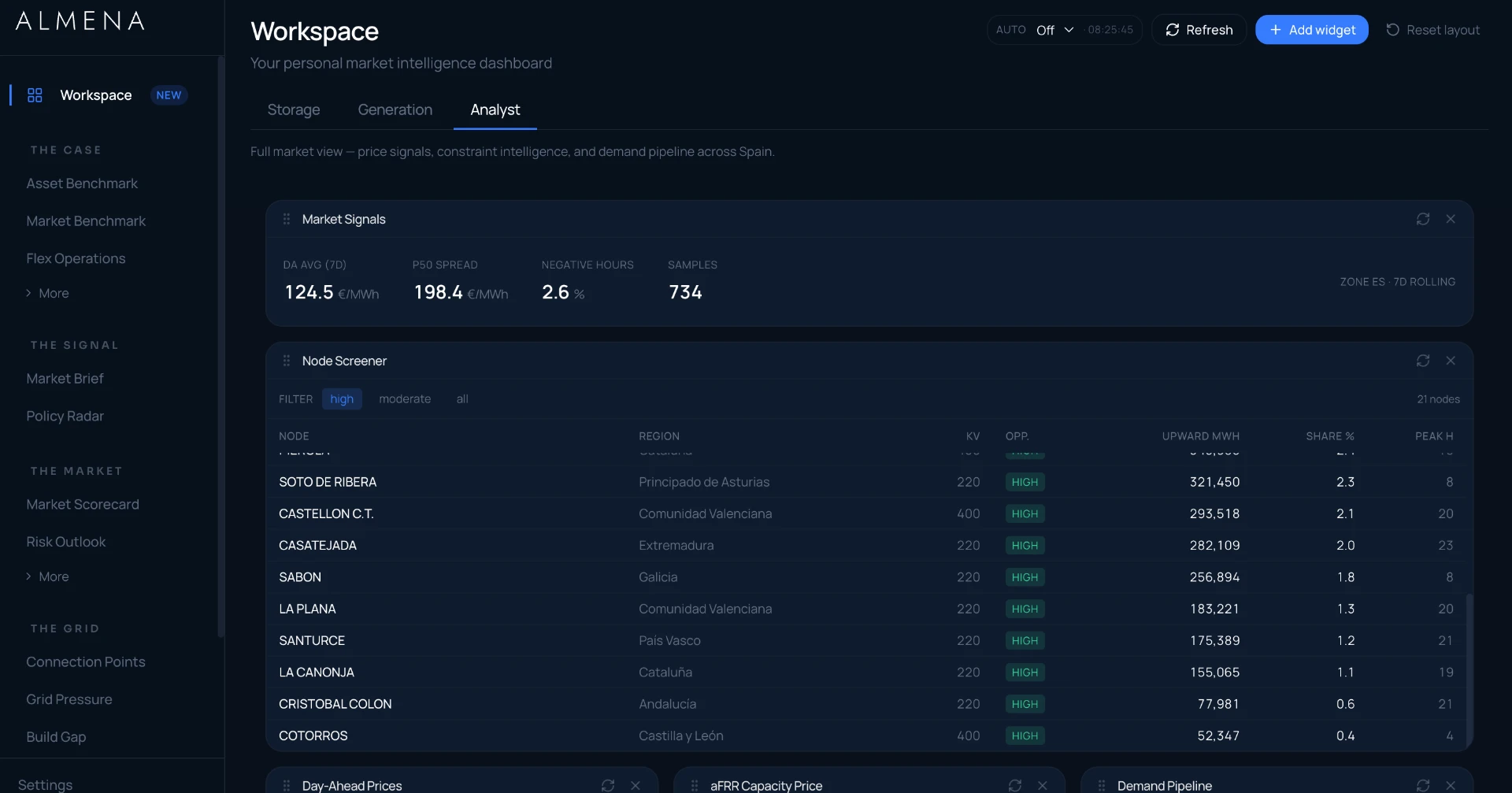
This is your home screen: a personal market-intelligence dashboard, not a generic landing page. Every panel is live, refreshable and tied to a module underneath.
4
Pick a view
Workspace currently ships with three views, Storage, Generation and Analyst, each pre-loaded with the widgets that view's persona uses most. Switching view swaps the entire layout, so you can move between an operating question and an investment question without rebuilding anything.
StorageGenerationAnalyst
More views coming soon
5
Add or remove widgets
Every widget on Workspace is a live window into one of the platform's modules. Market Signals pulls from Price Pulse, Node Screener pulls from Connection Points, and so on. Add what you need from the Widget Library, remove what you don't. Nothing on this screen is decorative.
See this in your own workspace